
Visual Studio Code and 5250
With our latest version of Code for IBM i, developers have access to virtually everything they need when writing both RPG and open source applications, all in a single editor.
This blog post covers the two types of terminals available: a PASE shell, enhanced in 0.84 for faster launch, and a 5250 terminal.

Code for i explorer, RPGLE code, problems, outline view and 5250 terminal.
Faster PASE terminal launch
Previously, when bringing up the PASE (SSH) environment in the VS Code terminal, you were prompted for your user and password. While this worked well, you were essentially logging in to your system twice, since you would have already connected to it when using Code for IBM i.
Now, assuming you have connected to your system using Code for IBM i, you can select the PASE (SSH) terminal using the Terminals button and be logged in automatically.
As shown below, clicking the Terminals button at the bottom of your screen will launch a quick-pick menu at the top of your screen, where you can select the type of Terminal you want. If you choose PASE, Code for IBM i will use your existing authenticated connection to open the terminal.


PASE terminal with automatic login
5250 terminal requirements and settings
The only requirement to launching a 5250 emulator is to have tn5250 installed, a terminal client for the IBM i that emulates 5250 terminals. This can be installed via yum. Once you have it installed, you’re good to go!
The Terminals tab in Settings lets you customize your terminal with several options. For example, 5250 Encoding specifies the CCSID mapping. 5250 Terminal Type includes numerous emulation types, including IBM-3180-2for a 132-column display.
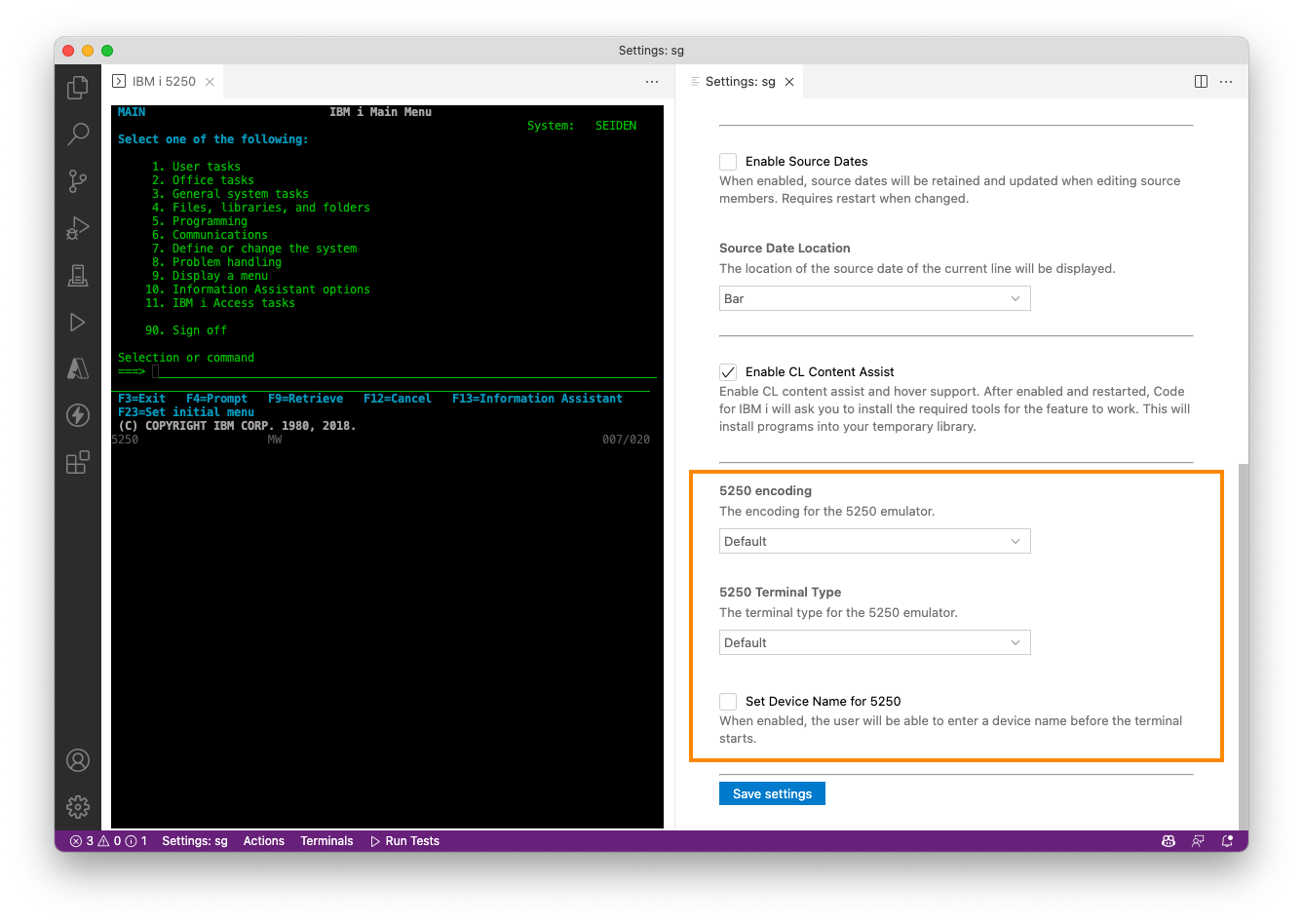 With these enhancements to Code for i, you can access not only your code, but 5250 terminals and PASE shells as well. Personally, I’ve found it saves me lots of time to have everything I need within the IDE.
Code for IBM i is completely free and open source.
If you have not yet tried VS Code for IBM i, you’ll find installation instructions here and a more complete list of resources at Visual Studio Code for IBM i: A Resource Guide.

Hi.
Does anyone knows hot to configure the 5250 Terminal in Visual Studio Code to use a screen size of 27×132 instead of 24×80?
Thanks in advance for any help.
Sidnei, we have now updated the article with the setting for 27×132. Check above under “5250 terminal requirements and settings.”
Thank you so much! You rocks!
Hi, I have installed the TN5250 version 0.17.5-3 using yum. But still I am getting the below error message when I try to spawn a 5250 terminal from VS Code.
5250 terminal is not supported. Please install tn5250 via yum on the remote system.
Do I need to open any port#?
Please help!
Thanks,
Ravi
Please report this issue to the Code for i Team and let us know how it goes. Instructions on reporting an issue are here: https://www.seidengroup.com/2023/07/10/how-to-report-an-issue-with-vs-code-for-ibm-i/
Hi Alan,
Thank you for the heads up. I created an issue in the Github repo and got it resolved. I really appreciate help.
https://github.com/halcyon-tech/vscode-ibmi/issues/1434
Thanks,
Ravisankar P.
Excellent, Ravisankar!
Hi Ravisankar,
it seems I am running into the same issue.
Could you share your solution for this ?
I’m having the same message
Help!